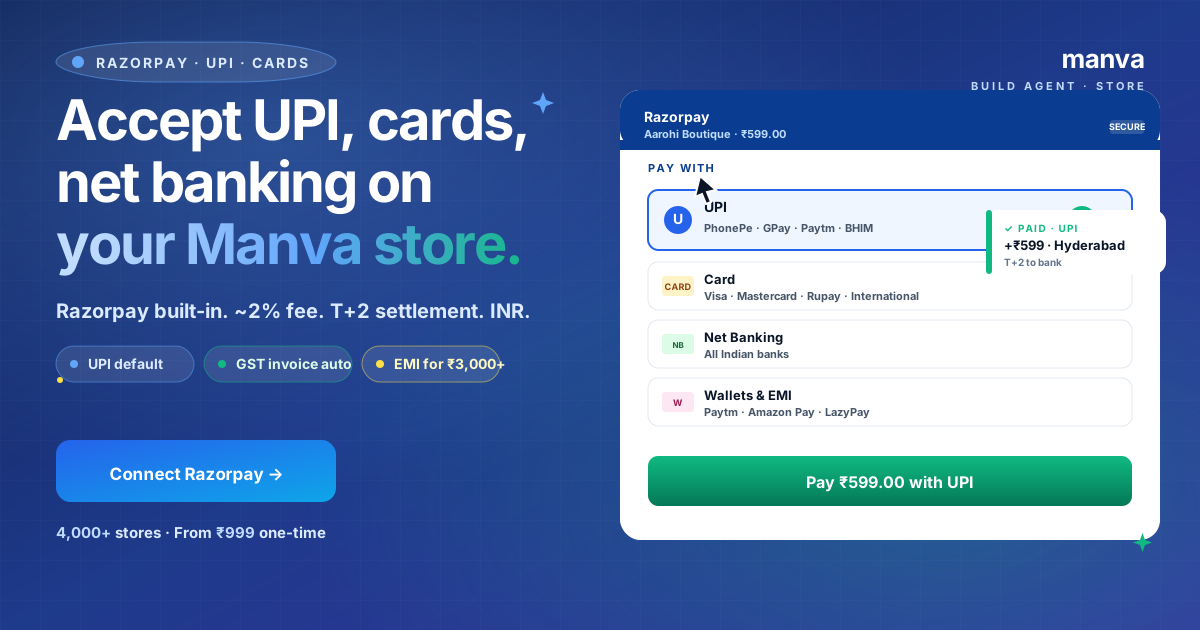
Indian buyers want to pay by UPI. They will not enter card details on a small store.
Razorpay is the cleanest way to accept UPI on a Manva site. ~2% fee. T+2 to your bank. Auto GST invoice. Setup is 90 seconds in Manva once your Razorpay account is active.
Why Razorpay (and not PayPal/Stripe) for India
Three structural reasons Razorpay wins on Indian stores:
- UPI is the default — 60-75% of Manva-store orders come via UPI. Razorpay's UPI flow is slick (PhonePe, GPay, Paytm, BHIM, any UPI app). PayPal does not support Indian UPI. Stripe India is restricted.
- INR settlement — money lands in your Indian bank in INR, no forex deductions. International gateways subtract 3-5% in conversion.
- GST invoicing — Razorpay auto-generates a GST-compliant invoice for every fee charged, which you can claim as input credit.
Stripe and PayPal make sense if >50% of your buyers are international. For an Indian-first store, start with Razorpay.
Go to razorpay.com → Sign Up → use your business email (not personal Gmail; Razorpay rejects free email for business accounts).
Add basic details:
- Business name (matches what you registered or your trade name)
- Business type (sole proprietorship, partnership, LLP, private limited)
- Category (e-commerce, services, education, etc.)
- Bank account where you want settlements
Save and proceed to KYC.
Razorpay's KYC needs four documents. Have them ready before you start:
- PAN card — business or proprietor PAN
- GST certificate — optional. Skip if you're under ₹40 lakh turnover
- Bank proof — cancelled cheque or recent bank statement
- Business address proof — utility bill, rent agreement, or registered office address
Razorpay's review takes 1-3 business days for active users. You'll get an email when activated. Test mode works immediately if you want to integrate before activation.
yourbrand.manva.ai (and your custom domain if connected). Skip this and you'll see "Website not registered" at checkout later.Once Razorpay is active, get your API keys: Razorpay Dashboard → Settings → API Keys → Generate Live Keys. Copy the Key ID and Key Secret.
In Manva: Settings → Payments → Connect Razorpay → paste the Key ID and Key Secret → Save.
Manva does a test ping. If it succeeds, you'll see Razorpay · Connected ✓. The checkout on your store now shows UPI, cards, net banking, wallets and EMI.
Don't have a Manva store yet?
Build a store with Razorpay + Shiprocket built-in for ₹999 one-time. UPI, cards, COD, custom domain, blog — all included.
Build a storeFees and settlement timing
| Method | Fee (approx) | Notes |
|---|---|---|
| UPI | ~1.5-2% | Cheapest, most popular |
| Domestic card (debit) | ~1% | Lower than credit |
| Domestic card (credit) | ~2% | Standard |
| Net banking | ~1.9% | Flat per bank |
| Wallet (Paytm/Amazon Pay) | ~2% | Standard |
| EMI (cards) | ~3% | For ₹3,000+ orders |
| International cards | ~3% | USD/GBP/AED supported |
GST (18%) on top of these fees, claimable as input credit if you have GSTIN.
Settlement: T+2 business days by default. Upgrade to T+1 for an extra fee. Settlements happen at 3 PM IST.
Common mistakes
1. Using personal Gmail for the Razorpay account
Razorpay rejects free email domains for business accounts. Use name@yourbrand.com — set this up at Google Workspace (₹136/month per user) or use your registrar's free email.
2. Skipping the website registration step
Add your Manva domain to Razorpay's "Website & App Details" before going live. Otherwise checkout fails with "Website not registered."
3. Forgetting to switch to Live keys
Razorpay gives Test and Live keys separately. Test keys don't accept real payments. After KYC activation, regenerate Live keys and update Manva.
4. Not setting GSTIN if you have one
Add your GSTIN in Razorpay Settings → Tax. Without it, you can't claim input credit on the 18% GST charged on your transaction fees.
5. Over-using EMI auto-show
Razorpay auto-shows EMI on orders ₹3,000+. For ₹3,000 fashion items, EMI feels weird. Disable EMI for low-ticket categories in Razorpay settings.
Frequently asked questions
Build a Manva store with Razorpay built-in
₹999 one-time. UPI, cards, COD via Shiprocket, custom domain, blog, SEO. No monthly fee.