Most "AI website builders" generate a site once and then make editing painful. Manva's editor is built so you can change anything on a live page, save versions as you go, and roll back if you change your mind. This guide covers the editor's real-world workflow.
Opening the editor
From the dashboard, Website → My websites → click your site → Edit. The editor opens with your live site in a frame on the right and a sidebar on the left. The sidebar shows the page tree (Home, About, Contact, individual product pages, blog posts).
You are always editing a draft. Nothing changes on your public site until you hit Publish.
Editing text in place
Click any heading, paragraph or button label. It becomes editable inline. Type your change, click anywhere outside, and the draft updates instantly.
For longer text edits — like rewriting an entire About paragraph — use the right-click menu → Edit with AI. You can:
- Ask for a tone change ("make this friendlier", "make this sound more premium")
- Ask for a length change ("shorten this to two sentences", "expand into three short paragraphs")
- Ask for a translation ("translate to Hindi", "translate to Telugu")
The AI suggestion shows side-by-side with the current text. Accept or reject — no changes are committed until you decide.
Editing images
Click any image to open the image picker. Three options:
- Upload your own — drag and drop a PNG, JPG or WebP. Manva auto-resizes for web and generates the right-sized thumbnails.
- Choose from your library — every image you have ever uploaded is searchable in the library
- Generate with AI — describe what you want ("a flat-lay of a brass coffee press on a wooden table") and pick from generated options. Useful when you do not have the right product photo.
- Stock library — Manva includes free stock from Pexels integration for placeholder hero images
Real product photos always outperform AI-generated or stock photos for conversion. Use generated images for backgrounds and abstract sections; use real photos for products and team shots.
Editing layout
For more than text and images, the editor has section blocks:
- Move section — drag the section handle to reorder within a page
- Duplicate section — useful for adding another testimonial or feature card
- Delete section — confirms before removing
- Add section — pick from a library of pre-designed blocks (hero variants, feature grids, FAQ accordions, CTA bands, contact forms, image galleries)
Each section is editable internally — change colours, padding, alignment without touching code.
Versions and rollback
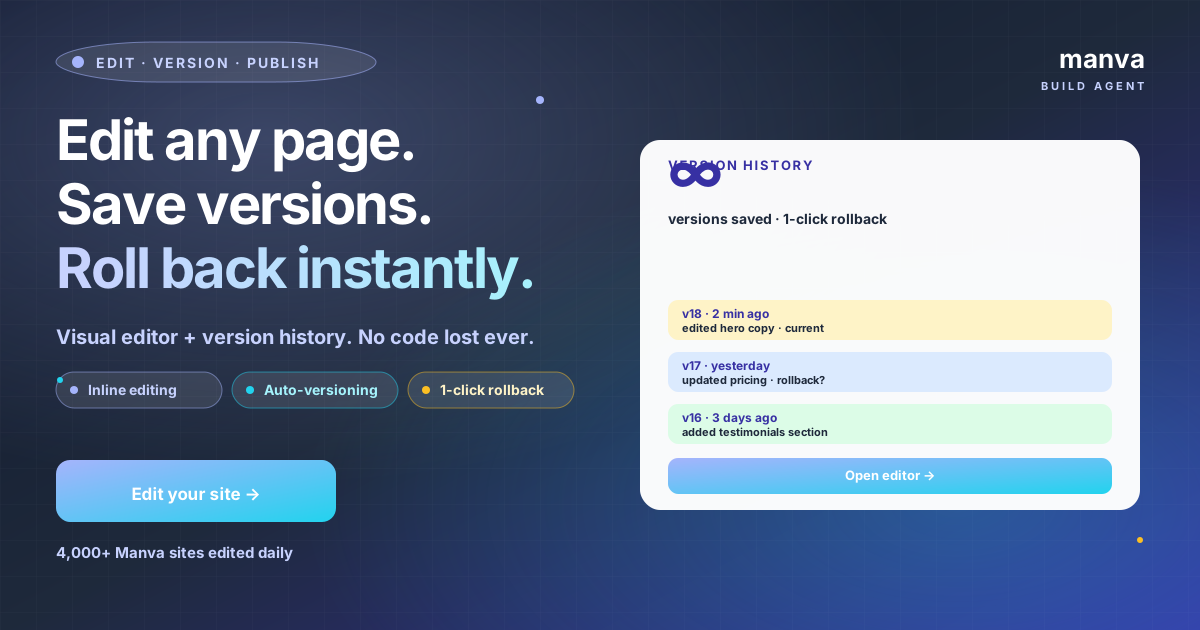
Every time you publish, Manva saves a snapshot of the page state. Open the History tab in the editor sidebar to see every previous version with:
- Date and time
- Who published it (if you have multiple team members)
- A side-by-side preview of "what changed" vs the previous version
Click any version → Restore → it becomes your current draft. You can then publish to make it live, or keep editing from there.
Before a major redesign, click Publish even if nothing has changed — it forces a snapshot. That snapshot becomes your "before" point if anything goes wrong with the next round of edits.
SEO settings per page
Open any page → click the gear icon → SEO. You can set:
- SEO title (50–60 characters) — what shows in Google search results
- Meta description (150–160 characters) — the snippet under the title
- Canonical URL — usually leave blank; Manva sets it correctly by default
- Open Graph image — what shows when someone shares the page on WhatsApp or Facebook
Changes apply on next publish.
Publishing
Hit Publish in the top-right. Manva pushes the draft to your live site within a few seconds. Visitors see the new version on their next page load.
If only one or two pages changed, you can publish those individually instead of the entire site — useful for quick fixes that should not wait for a bigger batch.
Working in a team
If multiple people edit the same site:
- The editor shows real-time presence (avatars of whoever else is editing)
- Two people editing the same section at the same time triggers a soft warning
- Different sections can be edited in parallel without conflicts
- The History tab attributes each version to the person who published it
For larger teams, set roles under Settings → Team:
- Admin — can publish, can change settings, can manage team
- Editor — can edit any page, can publish
- Reviewer — can edit drafts but cannot publish (changes need an Admin to approve)
- Viewer — read-only access
Common edit patterns
Seasonal banner — Add a CTA section to the top of the homepage with a Diwali / Eid / Christmas message. Duplicate the existing hero, edit text and image, position it above. Remove after the festival.
New product launch — Duplicate an existing product page, swap photos and text, hit Publish. The product appears in your storefront immediately.
Pricing change — Use Find + Replace (Cmd/Ctrl-F in the editor) to bulk-update prices across multiple pages at once.
Adding a section to multiple pages — Build the section once, then use Save as block → it goes into your block library and you can drop it into any other page.
Frequently asked questions
Can I revert just one section instead of the whole page? Not yet — version restore is page-level. The workaround is to copy the section content from the History preview, restore your current page, and paste the section back.
What if my edits break the page layout? The published site stays on the previous version until you actually hit Publish. Drafts can never break a live page. If a published version does break something, restore the prior version with one click.
Are there limits on how many edits I can make? No. Edit as often as you want.
Can I edit on mobile? The editor is desktop-first. Mobile editing is limited to text changes. For real layout work, use a laptop or desktop.
A website that you can edit yourself in the moments you need to is worth more than a website that needs a developer for every comma. Manva's editor is built for the kind of small changes that real businesses make daily — pricing, photos, banners, copy fixes — without ever touching code.