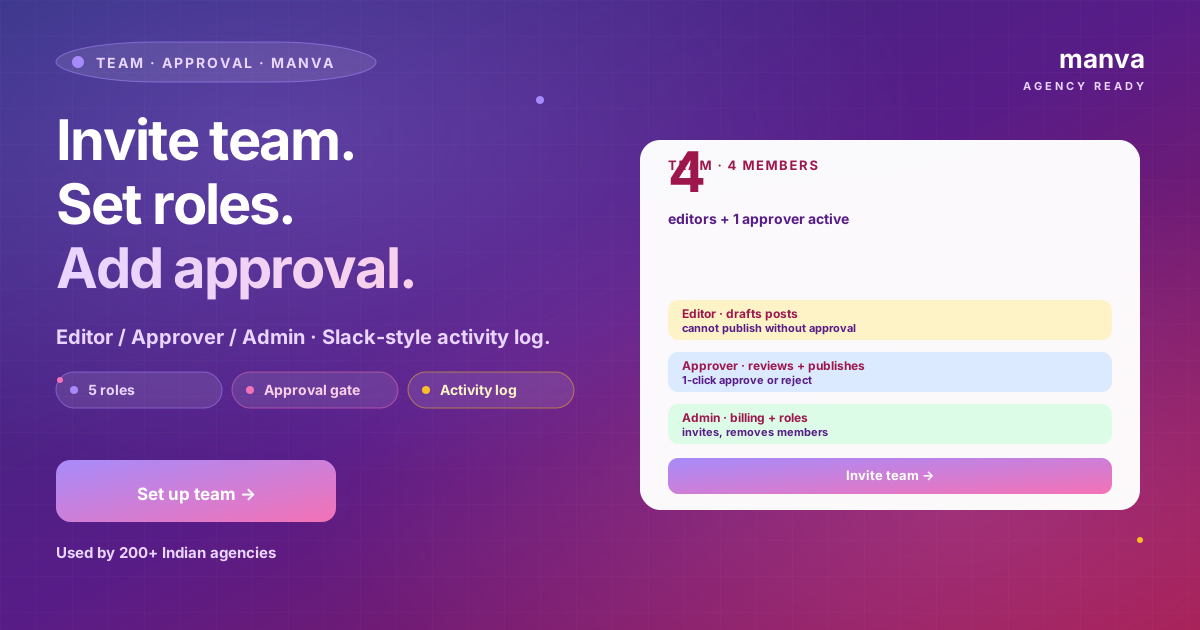
Once more than one person works on your Manva account, the difference between calm and chaos is whether everyone has the right access and there is a clear approval process. This guide walks through team roles and post-approval workflows.
When you need this
- You have hired a social media intern or executive who drafts posts, and you want the final say
- A creative agency manages content for you, and you want to review before they publish
- Two co-founders run different parts of the business and want non-overlapping access
- You are building toward audit compliance (e.g. listed company, regulated category)
If you are a solo operator, you do not need this — skip to the daily workflow guides.
Step 1: Invite team members
From the dashboard: Settings → Team → Invite member.
For each invite enter:
- Email — they will receive a link to accept
- Name — used in the activity log
- Role — pick from the role list (covered below)
The invite email is valid for 7 days. Once accepted, the member sets their own password and lands on your team's dashboard with the role-appropriate access.
Step 2: Pick the right role
Manva has four built-in roles:
| Role | Can edit | Can publish | Can change settings | Can manage team |
|---|---|---|---|---|
| Owner | ✓ | ✓ | ✓ | ✓ |
| Admin | ✓ | ✓ | ✓ | partial |
| Editor | ✓ | ✓ | – | – |
| Reviewer | ✓ (drafts only) | – (must request approval) | – | – |
| Viewer | – | – | – | – |
The Owner is whoever signed up — there is exactly one per account. Owner cannot be deleted (only transferred to another Admin).
Common assignments:
- Owner: founder
- Admin: co-founder, head of marketing, agency account manager
- Editor: social media manager, marketing executive
- Reviewer: intern, junior content writer, freelancer
- Viewer: investor, accountant, analyst — read-only access for reporting
Step 3: Turn on post approval (optional)
Under Settings → Team → Approval workflow, you can require approval before any post publishes. Three modes:
- Off — anyone with publish rights publishes directly. Fast but no review step.
- Reviewer-only — posts created by Reviewers go to an approver before publishing. Posts created by Editors and above publish directly.
- All posts — every post, regardless of who created it, needs approval. Maximum control, slower workflow.
If approval is on, pick the approver(s) — usually the Owner or one of the Admins. Multiple approvers means whoever clicks first approves.
Step 4: How approval works in practice
When a post is created and submitted with approval on:
- Creator hits Submit for approval instead of Publish
- The post moves to the Pending approval queue
- The approver gets a notification (in-dashboard, email, and Telegram if connected)
- Approver opens the post, sees the full preview for every channel, and either:
- Approves — post moves to scheduled / published
- Approves with edits — approver edits inline, then approves
- Requests changes — post goes back to creator with a note explaining what to change
- Rejects — post is killed; creator gets the rejection note
Every step is logged with timestamp and user, so the audit trail is automatic.
Step 5: Set per-channel approval rules
Some teams want approval for some channels but not others. Under Approval workflow → Per-channel rules:
- Auto-approve Stories (low risk, time-sensitive)
- Require approval for Feed posts (longer-lived, higher visibility)
- Require approval for WhatsApp broadcasts (compliance-critical)
- Require approval for any post tagged "campaign" or "press release"
Mix and match based on what you actually need to review.
The activity log
Path: Settings → Team → Activity log
Every meaningful action is logged:
- Member invited / removed / role changed
- Post created / edited / deleted / published
- Post approved / rejected / changes-requested
- Settings changed (payments, integrations, billing)
- Login from a new device
The log is searchable and exportable. Useful when investigating "who changed what" or for compliance evidence.
Two-factor authentication for the team
Under Settings → Security, you can require 2FA for all team members. Highly recommended for any account that handles payments, broadcasts, or has multiple users.
When 2FA is required, members get a one-time setup prompt at next login (Google Authenticator / Authy / SMS). After that, every login requires the 2FA code.
Removing a team member
When somebody leaves:
- Open Settings → Team
- Click their row → Remove
- Confirm
Their access is revoked instantly. Any drafts they had unpublished remain — assign them to another member to handle.
For agency relationships ending, consider also rotating any platform connections (Razorpay key, Shiprocket key) the agency had access to.
Common patterns
The "founder reviews everything" pattern. Editor creates posts, Owner approves all. Works for businesses under ₹1 cr revenue. Becomes a bottleneck above that.
The "head of marketing reviews" pattern. Editors create, Marketing Lead approves, Owner reviews weekly summary report. Scales better.
The "agency creates, brand approves" pattern. Agency members are Editors with submit-only rights, Brand Owner approves. Standard for agency engagements.
The "self-managed team" pattern. Editors publish directly, Owner reviews the activity log weekly. Trust-based, fastest cadence.
Frequently asked questions
Can I create a custom role? Custom roles are not configurable today. The four built-in roles cover most cases. Tell support if you need a specific access pattern they do not.
How many team members can I add? Depends on your plan. The Business plan supports up to 3 seats; Agency supports unlimited. See the pricing page for current limits.
Do team members count as separate Manva accounts? No — they are members of your single account, not separate accounts. They share your subscription.
Can two people edit the same post simultaneously? The editor warns when two people are in the same post. Your changes are saved, but the second saver overwrites the first if you both type in the same field. For real-time co-editing, use the comment feature instead.
A team that publishes good content fast is one where the right people have the right access and the approval process matches the actual quality bar — not more, not less. Manva's team setup is built to be that flexible: tight when you need control, loose when you need speed.