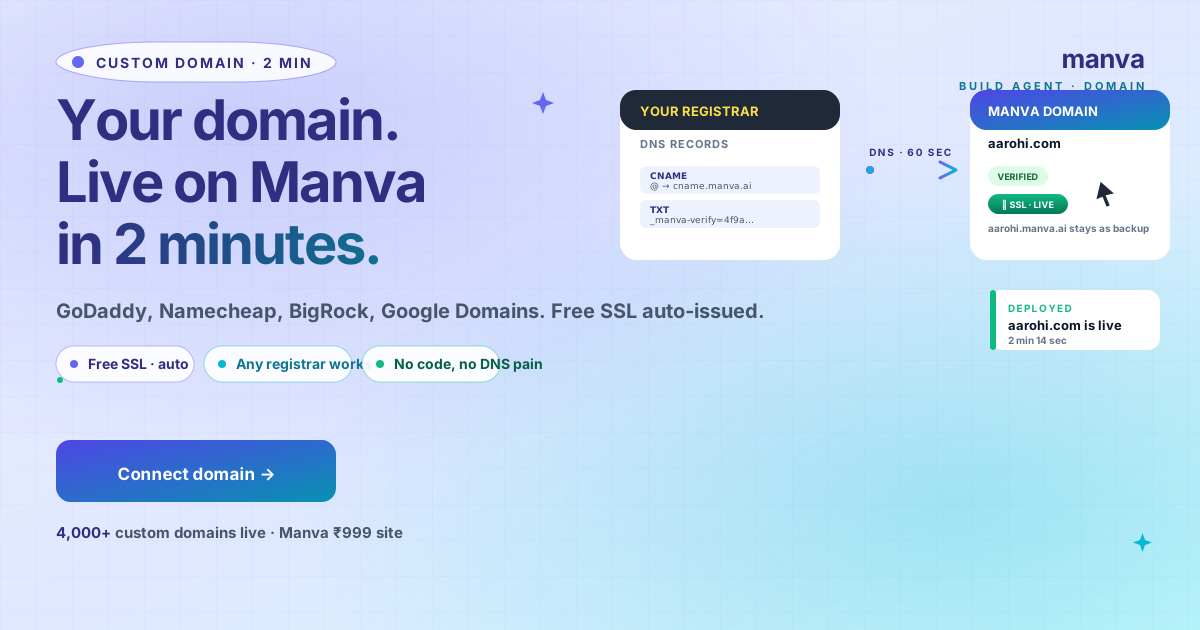
Your Manva site is live at yourbrand.manva.ai. Free, working, fine.
But buyers trust yourbrand.com more. Here's how to switch — in 2 minutes.
Why a custom domain matters (more than you think)
Three concrete things change when you move from yourbrand.manva.ai to yourbrand.com:
- Trust signal — buyers convert 18-25% better on a custom domain (Baymard, 2024). Indian buyers especially associate
.comwith "real business." - Professional email —
orders@yourbrand.combeatsyourbrand@gmail.comfor partner outreach and customer support. - Portability — your SEO authority (backlinks, Google rank) lives on the domain, not the platform. If you ever migrate, the brand goes with you.
The cost is ₹400-1,200/year for the domain. The setup is 2 minutes. There's no reason to skip it once your site is past the proof-of-concept stage.
From your dashboard: Settings → Domain → Connect Custom Domain. Type your domain (with or without www.) and click Connect.
Manva returns two records you'll need at your registrar:
- CNAME record — points your domain to
cname.manva.ai - TXT record — verifies you own the domain (looks like
_manva-verify=4f9a…)
Copy both. You'll paste them in Step 2.
aarohi.com and www.aarohi.com in this step. Manva treats them as the same site and 301-redirects between them automatically.Open your registrar's DNS Manager (paths below per registrar). Add both records you copied:
| Type | Host | Value | TTL |
|---|---|---|---|
| CNAME | @ or www | cname.manva.ai | 1 hour |
| TXT | @ | _manva-verify=… | 1 hour |
Save. Most registrars confirm with a green tick within 30 seconds.
ALIAS or ANAME instead — same effect, registrar-specific naming. GoDaddy supports it. Namecheap calls it ALIAS Record.Back in Manva → Settings → Domain. The status will show Verifying for 1-30 minutes while DNS propagates.
Once verified, three things happen automatically:
- Free SSL certificate issued via Let's Encrypt
- HTTP → HTTPS redirect enabled
- Both apex and www resolve to your site
Open your domain in a new tab. If you see your Manva site with a 🔒 lock in the address bar, you're done.
Don't have a Manva site yet?
Build a full website (with the AI Blog Writer, custom domain support, free SSL, sitemap and SEO included) for ₹999 one-time. No monthly fee.
Build a websiteRegistrar-specific paths
Where to find DNS Manager in the four most popular registrars used by Indian businesses:
GoDaddy
Login → My Products → Domain → DNS → Manage Zones → Add (CNAME, TXT). Save. Apex CNAME is supported via "@".
Namecheap
Domain List → Manage → Advanced DNS → Add New Record. Use ALIAS Record for the apex domain (instead of CNAME).
BigRock
My Account → Domains → Manage Order → DNS Management → Add Record. CNAME and TXT both supported on subdomain; use URL Forwarding for apex.
Google Domains (now Squarespace Domains)
Domain → DNS → Custom Records → Add. Apex domain uses A record (Manva provides one if needed) or CNAME via the @ alias.
Common gotchas
1. Forgetting the TXT verification record
Manva won't issue SSL until the TXT record is verified. If you only added the CNAME, the domain shows "Verifying" forever. Check both records exist.
2. Mixing apex CNAME with conflicting A records
If you have an old A record at @ from a previous host, delete it. CNAME and A records on the same host conflict.
3. TTL too high
Some registrars default TTL to 24 hours. Lower it to 1 hour during setup so changes propagate fast. You can raise it back to 24 hours after.
4. Not waiting long enough
DNS propagation isn't instant. Wait 30 minutes before troubleshooting. Use dnschecker.org to confirm propagation status globally.
5. Buying domain from an obscure registrar
Cheap registrars sometimes lock DNS editing behind upsells. Stick with GoDaddy, Namecheap, BigRock or Google Domains — domains there cost ₹400-1,200/year and DNS is included.
Frequently asked questions
Build a Manva website with custom domain support
₹999 one-time. AI-built website, products, custom domain, free SSL, blog, SEO. No monthly fee.