Until 2024, "open an online store" in India meant either renting Shopify at $29/month forever, or hiring a developer at ₹40,000+ to build a WooCommerce site, or settling for being one of 2,00,000+ sellers on a marketplace. None of these worked well for the small Indian business that wanted a real, branded storefront with UPI, COD and Indian shipping — at a price that didn't bleed monthly.
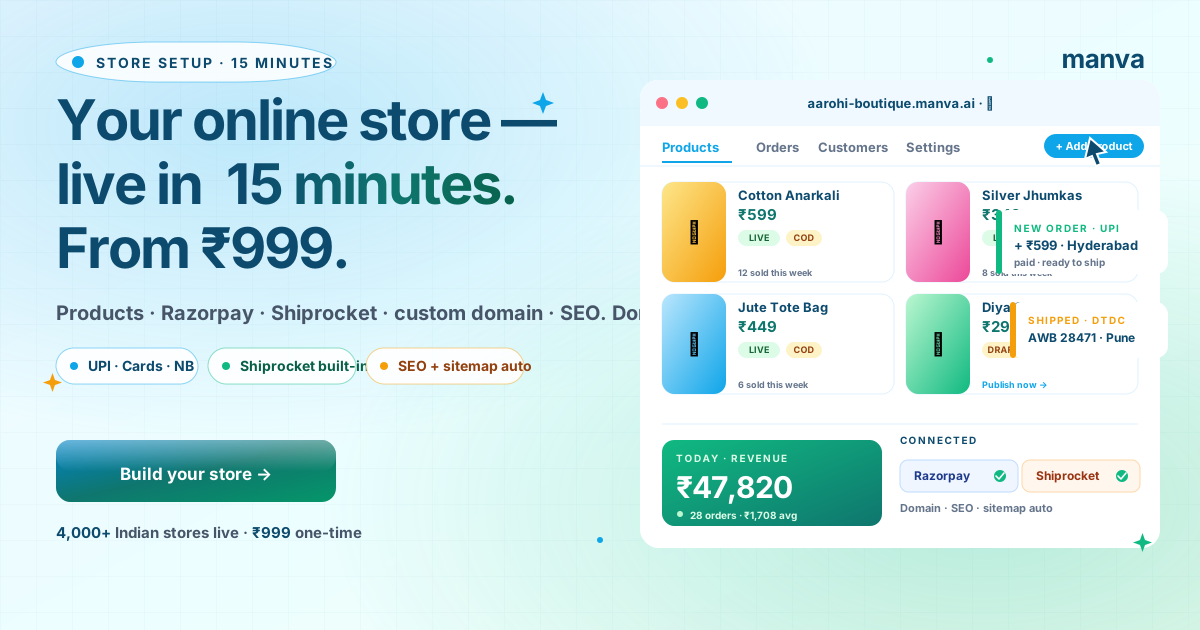
Manva launched the third option: a fully-built, AI-generated, payment-and-shipping-enabled Indian online store for ₹999 one-time. No monthly fee, no developer, no agency. Setup takes 15 minutes. 4,000+ Indian stores are now live on it. This guide is the exact 6-step workflow to go from "I want my own store" to "I just received my first UPI order" — same day.
If you've never built a store before, this is the cheapest, fastest, fully-featured option in India today. If you're already on Shopify or WooCommerce, you can migrate using a CSV in under an hour (covered in the FAQ). Bookmark this page for the next time you set up a store — most of the screenshots and shortcuts apply unchanged.
Why your own store beats Meesho/Amazon for India in 2026
Marketplaces (Meesho, Amazon, Flipkart) are great for discovery — they bring you traffic on day one. They're terrible for margin, repeat customers, and building any kind of brand. Three structural reasons:
- Marketplace fees compound to 18-32% of order value. Listing, payment gateway, fulfilment fees, return commissions. On a ₹599 product, you keep ₹400-490 after fees. On your own store with Razorpay (~2%) + Shiprocket (~₹35-60 per shipment), you keep ₹530-560. The math compounds across every order.
- Your customers are not yours. Marketplaces don't let you re-target buyers, build a WhatsApp list, or send email campaigns. Every order is one-shot. On your own store, customers join your list, get retargeted, and become repeat buyers worth 3-5x more.
- You can't build a brand inside someone else's marketplace. Your product page on a marketplace looks like every other seller's. On your own store, your packaging, photos, language, and check-out experience signal "premium" — and let you charge 15-30% more for the same product.
The smart 2026 setup for an Indian SMB is both: keep marketplace listings for discovery, but route every customer you can to your own store. The breakeven is fast — for most categories, your second or third order on your own store has already paid back the ₹999 investment.
Sign up at manva.ai and pick the Store pack at ₹999 one-time. Manva's Build Agent then asks a short questionnaire — about 7 questions — to understand your brand. The answers feed directly into the AI generation, so spend 90 seconds being specific:
- Business name — exactly as you want it on the storefront. "Aarohi Boutique" not "aarohi"; capitalisation matters.
- Category — fashion, jewellery, food, decor, beauty, gifting, home, kids. Pick the closest.
- Audience — "women 25-45 in tier-2/3 cities looking for daily-wear cotton suits" beats "everyone." The AI uses this for tone, copy, and even font/colour choices.
- Style preference — minimal, vibrant, classic, modern. Or skip and let the AI pick based on category.
- Primary language — English, Hindi, Tamil, Telugu, Bengali, Gujarati, Marathi, Kannada, Malayalam, Punjabi, Odia. The storefront and product templates generate in this language.
- Whether you want a blog — yes, always. Even if you don't write today, leave it on. SEO compounds for years.
- Logo — upload yours, or let the AI generate three options.
Click Generate. The Build Agent produces a multi-page storefront — homepage, products grid, individual product templates, about, contact, blog — in roughly 5 minutes. You can close the tab; Manva emails when it's ready.
Once the store is generated, head to Products → Add. For each product, you'll need:
- Photo — upload from phone, drag-drop from desktop, or use AI image generation if you don't have one yet.
- Title — short, descriptive, keyword-led. "Hand-block-printed cotton kurta — Hyderabad summer collection" beats "Kurta 1."
- Description — 80-150 words. Manva can auto-generate this in 11 Indian languages — pick a tone (friendly, expert, witty) and the AI writes it in 5 seconds.
- Price + MRP — actual price + crossed-out MRP if you want to show savings. Indian buyers respond strongly to visible discounts.
- Inventory — quantity in stock. Goes to "out of stock" automatically when it hits zero.
- SKU — your internal code. Optional but recommended for inventory management.
- Variants — sizes, colours, etc. Each variant can have its own price and stock.
For a first launch, you don't need 50 products. Start with 6-12 products — your hero items, the ones you know sell. Add more as the store stabilises. Stores that launch with 300+ products tend to look unfinished because no single product gets the photo and description quality it deserves.
Without payments, a store is a brochure. Razorpay is India's leading payment gateway and is the default Manva integration. Settings → Payments → Connect Razorpay. The connection takes 90 seconds if you already have a Razorpay account; about 15 minutes if you're signing up.
What gets enabled when Razorpay is connected:
- UPI — PhonePe, Google Pay, Paytm, BHIM, any UPI app. This will be 60-75% of your orders.
- Credit + debit cards — Visa, Mastercard, Rupay. International cards too if you sell to NRIs.
- Net banking — all major Indian banks.
- Wallets — Paytm, PhonePe, Amazon Pay, Mobikwik.
- EMI — for orders above ₹3,000, automatically.
- Pay Later — Lazypay, Simpl. Optional toggle.
Razorpay's transaction fee is around 2% (varies slightly by method). Money lands in your bank account in T+2 business days by default. You can switch to T+1 settlement for a small additional fee if cash flow is critical.
yourbrand.manva.ai (and your custom domain if connected) to the registered websites list. Approval is automatic for already-active accounts.Build your store from ₹999 one-time
The Build Agent generates a Manva storefront with products, Razorpay, Shiprocket, custom domain, blog and SEO included. No monthly fee. 15-minute setup.
Start buildingShipping is the second piece every Indian online store needs. Manva's Shiprocket integration handles this in one click. Settings → Shipping → Connect Shiprocket, log in with your Shiprocket credentials (or create an account — free).
What you get from Shiprocket through Manva:
- 17+ courier partners compared automatically — Bluedart, DTDC, Delhivery, Ekart, Xpressbees, ShadowFax, etc. The cheapest one for each pin code is picked by default.
- One-click label printing — print A4 or thermal labels from the Manva orders dashboard.
- COD enabled by default — cash collected on delivery, remitted to your bank in 7-10 days.
- Live tracking — buyers get an email and SMS with the tracking link automatically.
- Return labels — generate reverse pickup labels in one click for return requests.
- Pickup scheduling — schedule courier pickup from your address; you don't have to drop off.
Shipping rates start around ₹35 per shipment for prepaid, slightly more for COD. The exact rate depends on weight, destination zone, and chosen courier. For a typical fashion/jewellery/home-decor product, expect ₹45-70 per order in shipping costs.
Your store is live at yourbrand.manva.ai the moment payments and shipping are connected. That's free and works fine. But for serious branding, you want your own yourbrand.com domain — buyers trust it more, you can use professional email addresses, and it's portable if you ever move platforms.
Setup steps:
- Buy the domain — GoDaddy, Namecheap, BigRock, or Google Domains. Cost is typically ₹400-1,200/year for a .com or .in domain.
- In Manva, go to Settings → Domain → Connect Custom Domain → enter your domain.
- Manva shows you two DNS records to add at your registrar — usually a CNAME pointing to
cname.manva.aiand a TXT record for verification. - Add the records at GoDaddy/Namecheap — takes 2 minutes. The exact path varies by registrar; the custom domain guide has step-by-step screenshots.
- Wait 1-24 hours for DNS propagation. Manva auto-issues a free SSL certificate the moment your domain resolves correctly.
Once live, your store works at both yourbrand.com and yourbrand.manva.ai simultaneously. The Manva subdomain becomes a permanent backup.
SEO setup before launch saves months of "why isn't my store on Google" later. Manva pre-fills most of it; spend 5 minutes finalising the rest:
- Homepage meta title (under 60 chars) — "Aarohi Boutique — Hand-block Cotton Kurtas, Free Shipping ₹999+"
- Homepage meta description (140-160 chars with a number) — "Hand-block-printed cotton kurtas from Hyderabad. UPI + COD all India. Free shipping above ₹999. New monsoon collection live."
- Each top product — same treatment: descriptive meta title, 140-char description, alt text on every image.
- Connect Google Search Console — Settings → SEO → Search Console. Verification is auto-handled via DNS.
- Submit your sitemap — Manva auto-generates
/sitemap.xml. Submit it once in Google Search Console; Manva pings Google on every product/page update afterwards. - Connect Google Analytics if you want detailed visitor data — paste your GA4 measurement ID into Settings → Integrations.
Click Publish. Your store is live. Place your first test order yourself (use your phone, real UPI) to verify the entire flow — payment, order confirmation email, label print, courier pickup. If anything breaks, you'd rather find out before a real customer does.
The first-sale checklist
What to do in the first 7 days after going live to maximise the chance of orders coming in:
- Announce to your existing audience — WhatsApp Status, Instagram Story, Facebook post, personal WhatsApp to family and friends. Honestly.
- Run an opening discount — 10-15% off, code
OPENING, valid for 7 days. Creates urgency for buyers who were on the fence. - Cross-post your top products to Instagram — Manva's Social Media Assistant turns each product into an Instagram post + Story + WhatsApp broadcast in one click.
- Add WhatsApp Business chat widget — Settings → Integrations → WhatsApp. Buyers click and start a chat to ask questions; you answer in your normal WhatsApp.
- Send a thank-you message after the first order — personal, not automated. Repeat-rate doubles for buyers who get a personal reply within 60 minutes of the first order.
Common mistakes
1. Launching with 200 products before any have been tested
Quality of presentation matters more than quantity. 8 products with great photos and descriptions outperform 80 with phone shots and one-line descriptions. Build out the catalogue gradually as orders give you signal on what sells.
2. Forgetting to add the registered website to Razorpay
If you're seeing "website not registered" at checkout, this is the fix — Razorpay dashboard → Account & Settings → Website & App Details → add your domain. Approval is usually automatic for active accounts.
3. Not enabling COD
For tier-2/3 audiences, COD is 35-50% of orders. Disabling it kills half your revenue. Enable through Shiprocket; the courier handles the cash collection.
4. Skipping product alt text
Alt text on product images is a free SEO signal — Google ranks product images partly off alt text, and image search drives meaningful traffic for ecommerce. Manva nudges you when an image is missing alt; don't skip the prompt.
5. No abandoned-cart recovery
Manva's built-in abandoned-cart email recovers 8-15% of dropped carts on average. Enable it in Settings → Marketing → Abandoned Cart. Free, automatic, runs in the background.
What to do after the first 10 orders
Once your first 10 orders are in:
- Add the AI Blog Writer — start publishing 2 blog posts per month for SEO. By month 3, organic traffic should be a meaningful share of orders.
- Build a WhatsApp broadcast list — every customer becomes a candidate. Read our WhatsApp broadcast playbook for the rules and templates.
- Layer in Instagram and WhatsApp marketing — see our Instagram growth playbook.
- Festival pre-game — open the festival calendar and pre-schedule campaigns for the next 4-6 festivals.
- Compare AI tools — read our ranked guide to the best AI tools for social media in 2026 if you want to add channels.
Frequently asked questions
Build your store in 15 minutes
₹999 one-time. AI-built storefront, products, Razorpay, Shiprocket, custom domain, blog, SEO. No monthly fee. No code, no developer.