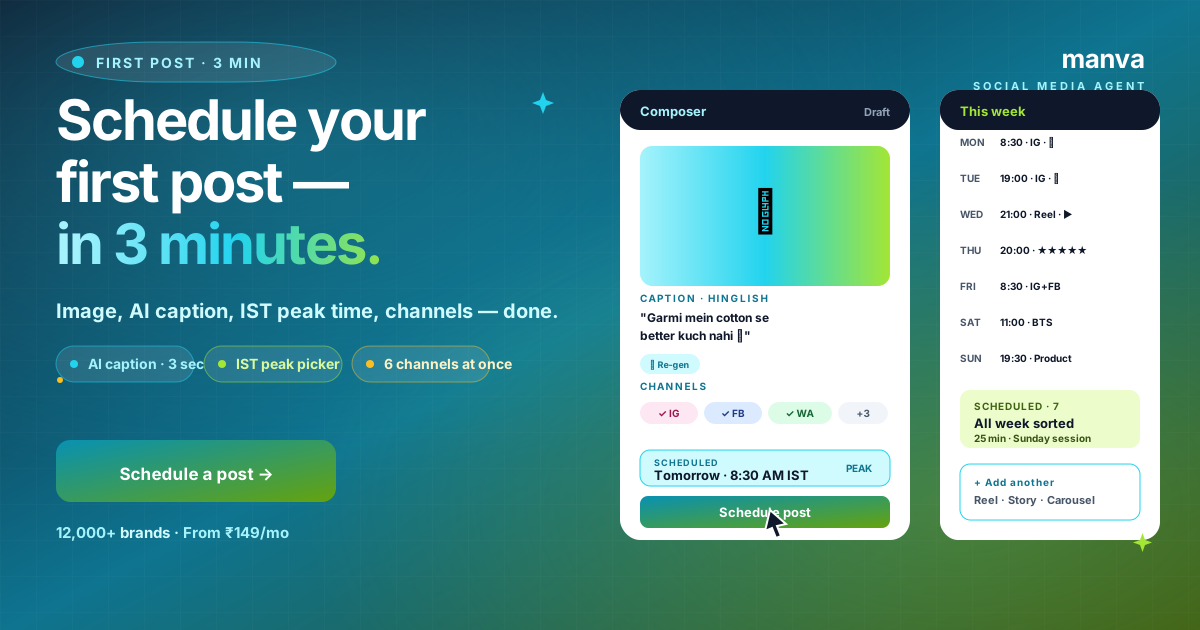
Once your accounts are connected and Brand DNA is filled in, the next step is publishing your first scheduled post. This guide walks through the composer end-to-end so the first post is a smooth one.
Open the post composer
From the dashboard: Posts → Create new post. The composer has three panels:
- Left: the canvas (your image or video)
- Centre: the caption, hashtags, and CTA
- Right: scheduling, channel selection, and AI tools
The defaults are set up for the most common case — a single Instagram + Facebook post.
Step 1: Choose or generate the visual
You have three options for the image:
- Upload your own — drag and drop a photo or video. Manva auto-resizes for each platform (Instagram 1:1 or 4:5, Facebook 16:9, Stories 9:16).
- Pick a template — browse the template library by category (festive, product, sale, motivational, behind-the-scenes). Click to apply — your brand colours and logo auto-fill.
- Generate with AI — describe what you want and Manva creates an image. Useful for placeholder backgrounds, lifestyle shots you do not have, or seasonal banners.
Real product photos always outperform AI-generated or stock for product posts. Save AI generation for backgrounds, illustrations, abstract concepts, and seasonal banners — places where authenticity matters less.
Step 2: Generate the caption
Click Generate caption. Manva pulls in your Brand DNA, looks at the image, and proposes 3 caption variations. For each it shows:
- The caption text
- The recommended hashtag bundle
- A predicted engagement-fit score (based on how the caption matches your historical best-performing posts)
Pick the variant you like, edit anything that does not feel quite right, and move on.
If you have a specific topic in mind, type it into the Topic field before generating ("new arrival — silk kurta in mustard yellow"). The AI uses that as the angle.
Step 3: Pick channels
By default the post publishes to all your connected accounts at the same time. Untick any you want to skip — useful when you have a reel that only suits Instagram, or a long-form post that only suits LinkedIn.
For each channel, the composer shows a live preview so you know exactly how the post will look on that platform. Instagram crops differently than Facebook differently than LinkedIn — the previews catch any awkward cropping before publish.
Step 4: Schedule the post
Three options:
| Option | When to use |
|---|---|
| Post now | Immediate — you finished writing and want it up right now |
| Schedule | Pick a date and time — defaults to your account's timezone |
| Best time to post | Manva picks the optimal time based on when your audience is actually active |
The "best time" option uses your historical engagement data, so it gets more accurate over time. For new accounts with no data yet, it falls back to a sensible India default (8pm IST weekdays for B2C).
Step 5: Confirm and schedule
Click Schedule. The post lands in your queue under Posts → Scheduled with the publish time and the channels it is going to. You can edit it any time before the scheduled time.
If you have a team approval workflow turned on (see the team-roles guide), the post moves to Pending approval and the assigned reviewer gets a notification.
Step 6 (after publish): Read the post-publish report
When the post goes live, you get a notification. Open the post in Posts → Published to see:
- Confirmation that it published cleanly to every selected channel
- The published URL on each platform
- Live engagement (likes, comments, shares, saves) refreshed every few minutes
- Audience demographics on the post (age, gender, top cities)
Building a posting habit
The hardest part of social media is consistency. A few habits that make it sustainable:
- Batch your scheduling. Spend one Sunday morning a week scheduling 6–10 posts for the upcoming week.
- Use the festival calendar. Manva flags upcoming Indian festivals so you can pre-schedule festive content weeks in advance.
- Re-post evergreen content. Posts that performed well 6 months ago are usually still good — duplicate, refresh the caption, and reschedule.
Frequently asked questions
Can I edit a scheduled post? Yes, any time before the scheduled time. Open it from the queue and edit normally.
What happens if Instagram rejects the post? Manva surfaces the exact error from Instagram and lets you fix and retry. Common reasons: image dimensions out of spec, caption over the character limit, or hashtag count over 30.
Can I schedule Stories? Yes, for Instagram and Facebook Stories. Use the dedicated Story composer (the format is 9:16 only).
Can I schedule Reels? Yes — upload the video and the composer treats it as a Reel automatically. Reels still need a vertical 9:16 video; you cannot upload a square video and call it a Reel.
A scheduled post is one that you do not have to think about at the moment it goes live. The whole point of Manva's composer is to take the work that used to fragment your day and consolidate it into one weekly batch — so the rest of your time goes to running the business.